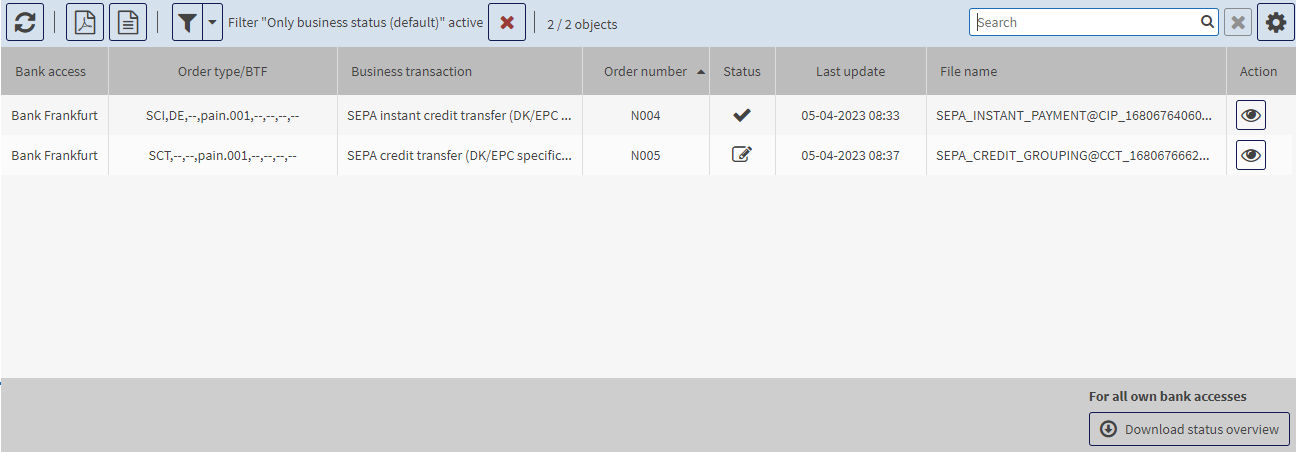
Displaying overview of the status messages

 
Explanation

The menu Order status ➔ Status overview provides an overview of the available HAC status messages.

The default when opening the mask is that only the messages with a business status are displayed. You can hide further messages by setting filter criteria.

The following figure illustrates an exemplary filtered list of status messages:

The columns of the mask have the following meaning:

Column

Description

Bank access

Bank access via which the order was sent

The Bank access column is only displayed if you are authorised to work with multiple bank accesses.

Order type/BTF

When using EBICS 2.5: order type

When using EBICS 3.0 or higher: BTF parameters

Comma-separated list with Service Name, Service Scope, Service Option, Message Name, Message Version, Message Variant, Message Format, Container Type

Business transaction

Long text for the order type or BTF

If two dashes (--) are displayed in the column Business transaction, there is no assignment to a business transaction at your bank access for the order type or the BTF.

Order number

Reference of the order, is assigned by the application

The order number is unique in connection with the bank server and your EBICS customer. You can use the order number to identify the order.

For orders that you have transferred from the application, you will also find the order number in the overview mask of the menu File transfers.

Note:

If the order number is not displayed in the overview of file transfers, open the column configuration by clicking on and activate the column Order number.

Status

Displays the status of the payment order as a symbol

Placing the cursor over the text will display a tooltip with the status as a long text.

The statuses have the following meaning:

File was transferred to the financial institution.

A file without an electronic signature was successfully transferred to the bank server.

File was downloaded from the financial institution.

A file without an electronic signature was successfully downloaded from the bank server.

Electronic signature was transferred to the financial institution.

A file with an electronic signature was transferred to the bank server within the EDS procedure.

Electronic signature was downloaded from the financial institution.

A file with an electronic signature was downloaded from the bank server.

Signature check

The bank server checks the transferred electronic signature.

Forwarding for EDS

The file is saved in the EDS procedure and awaits the required electronic signatures.

EDS signature check

The bank server checks the transferred electronic signatures within the EDS procedure.

End of EDS signature check

The verification process in the EDS procedure was completed as the last signature required for the authorisation of a payment has been successfully checked.

Cancellation of an EDS order

The order was cancelled by an authorised user within the EDS procedure.

Additional information

Additional information is available for the payment order. The additional information is displayed in the detailed view.

HAC: (positive) order completion, Positive end to order

The order has been completed with a positive end at protocol level, i.e. either all signatures required for release are correct and the order can therefore proceed to the further processing or the order has been cancelled by an authorised person.

HAC: (negative) order completion, Negative end to order

The order could not be fully processed at protocol level for various reasons, e.g. either due to incorrect signatures or a technical error. The actions and their results are displayed in the detailed view.

HAC end of order

The bank server did not provide any further finalising information.

Last update

Date/time of the last status update

File name

File name of the order file

If you open the status overview immediately after sending orders, the data displayed may not yet have been updated. To update the data manually, click on Download status overview.

Your operator can configure whether and at what interval the status overview is automatically updated.