|
|
Header area
|
|
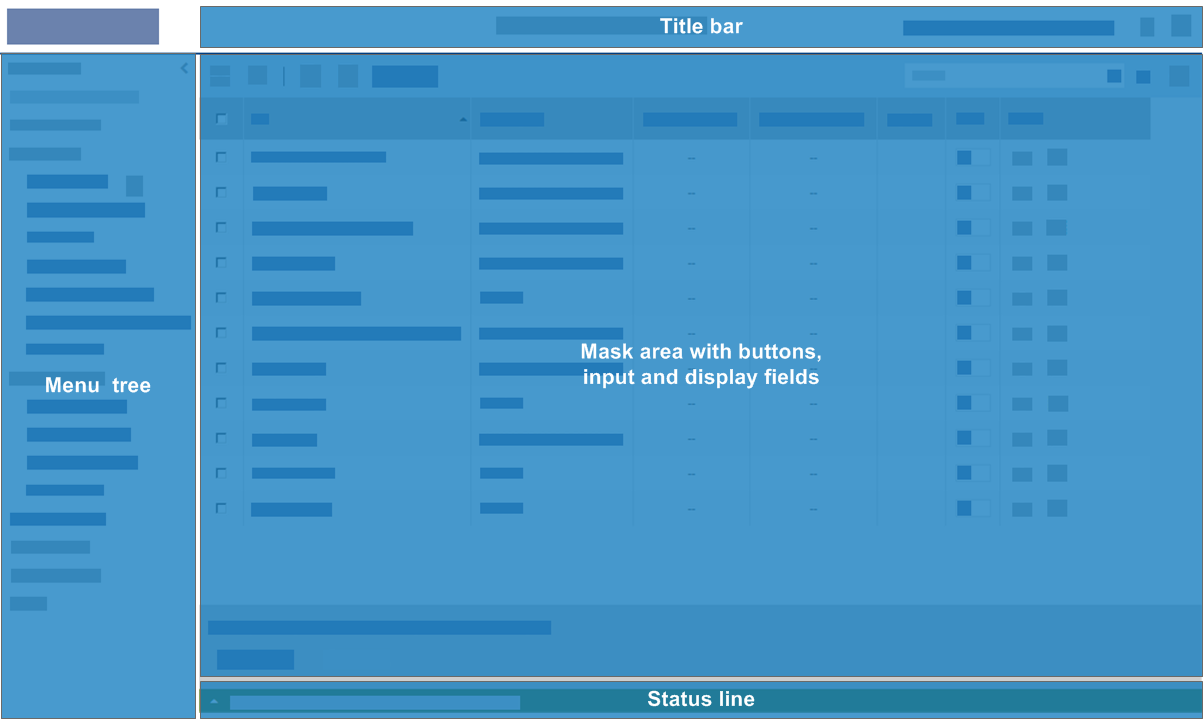
The mask title is displayed in the centre of the upper area. The currently logged in user and their user ID are displayed as a link on the right. A click on the link opens the mask .
|
|
|
By clicking on the question mark, you open the online help.
|
|
|
By clicking on the button  , you log out from the application. , you log out from the application.
|
|
|
|
Menu tree
The left-hand area displays the menu tree with the functions of the TRAVIC-Port application.
|
|
The function you are currently using is displayed in blue.
|
|
|
If you work with real-time notifications (not part of the standard scope of the application):
If a notification symbol as a filled or unfilled circle with a number is displayed after a menu item, this has the following meaning:
– Filled circle, for example,  : The notification symbol is displayed on the first menu level. One of multiple submenu items contain as many unread messages in total as displayed. : The notification symbol is displayed on the first menu level. One of multiple submenu items contain as many unread messages in total as displayed.
– Unfilled circle, for example,  : The notification symbol is displayed at a submenu item. This menu item contains as many unread messages as displayed. : The notification symbol is displayed at a submenu item. This menu item contains as many unread messages as displayed.
The number is either updated as soon as you open the menu item or only once you actively mark a message as read. The respective behaviour is controlled by the application.
|
|
|
|
Workspace
|
|
In the workspace, the current mask with its input and display fields and the mask-specific buttons are displayed.
|
|
|
By means of the button above the menu tree (arrow to the left), you can hide the menu tree so that the content of the mask can be displayed on smaller screens without having to use a scrollbar.
|
|
|
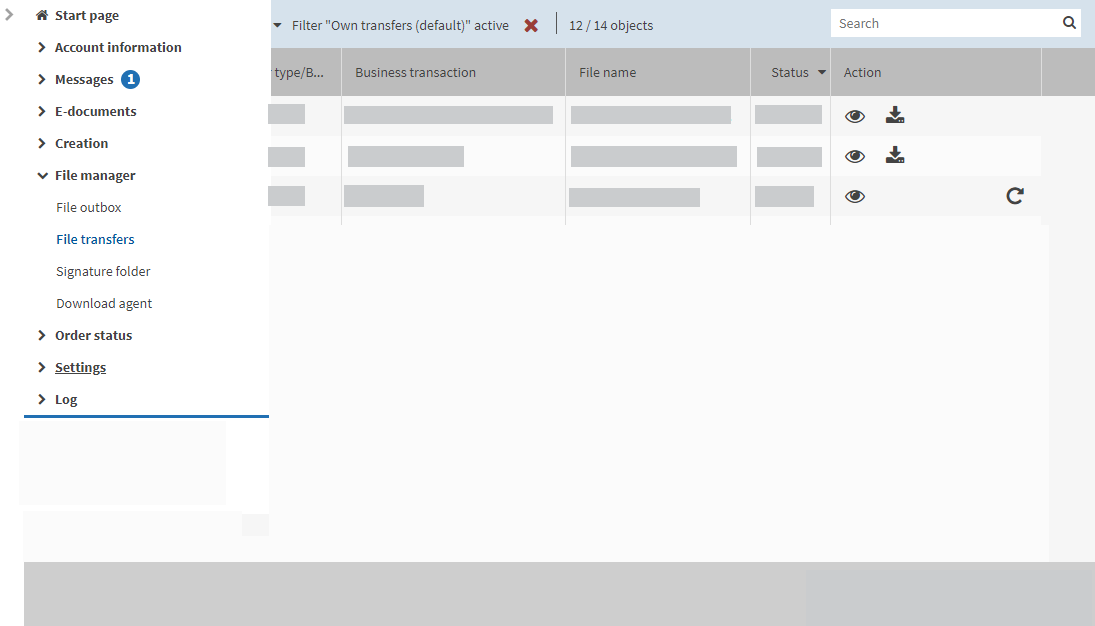
By clicking in the minimised menu, you have the menu tree displayed above the mask area. The mask area is superimposed by the menu tree. You can select a menu item.
Superimposed workspace exemplified by the file transfer mask
|
|
|
By means of the arrow to the right which is displayed when the menu tree is hidden, you can display the menu tree again.
|
|
|
If you work with real-time notifications (not part of the standard scope of the application):
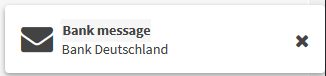
In the workspace the application displays important information in a pop-up element that you should see in a timely manner, for example, that a new bank message or an instant payments notification has been received. You do not have to confirm or close the pop-up elements. They are automatically closed after a few seconds. When you click on the pop-up element, you are redirected to the relevant mask.
To actively close the pop-up element, click on the x or on an area outside of the pop-up element, or press [ ESC ] .
Example of a pop-up element
|
|
|
|
Footer (selection list) with status information
|
|
The footer displays the result of your last action as message.
Note:
It is recommended to check the feedback in the footer after each action. That way, you can always monitor whether your actions have been executed successfully.
|
|
|
To have a cross-mask view of all messages of the session and their results, open the footer using the arrow up.
|
Note:
If your action causes several messages to be displayed, these messages are sorted by their importance so that the message which is most important for you is always displayed in the visible area (in the lowest line).
The messages are highlighted with different colours:
|
|
Green and blue: information
|
|
|
Orange: warning
|
|
|
Red: error
|
|
|
|
Mask area with field group/s
|
|
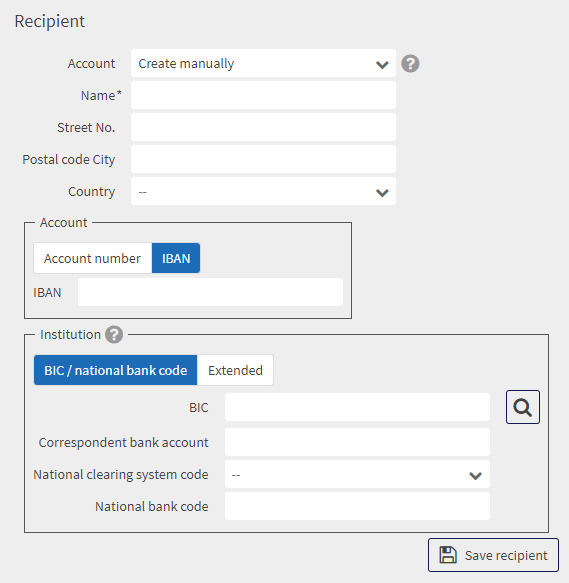
On some masks there are further field groups within a mask area that characterise thematically related fields. Field groups are visually separated from other fields or field groups by a frame. The figure shows the mask area Recipient with the field groups Account and Institution.
|
|
|
|
Mask area with additional information
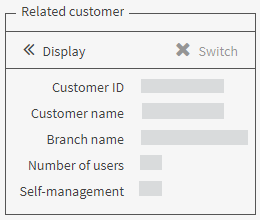
In the detailed masks, you will find a mask area with additional information on the displayed context.
In this mask area, you have the following editing options via the respective buttons:
|
Button
|
Action
|

|
Hides the additional information
|
|
Display
|
Switches back to the detailed mask of the respective object (for example, of the account)
|
|
Switch
|
Switches back to the list view in the current context (for example, to the account list)
|
|