The menu item gives you an overview of the available messages (pain.002, PSR1). The messages for the respective levels are listed.
The default when opening the mask is that only the messages for the rejected levels of the order file are displayed. You can hide further messages by setting filter criteria.
The following figure illustrates an exemplary filtered list of messages:
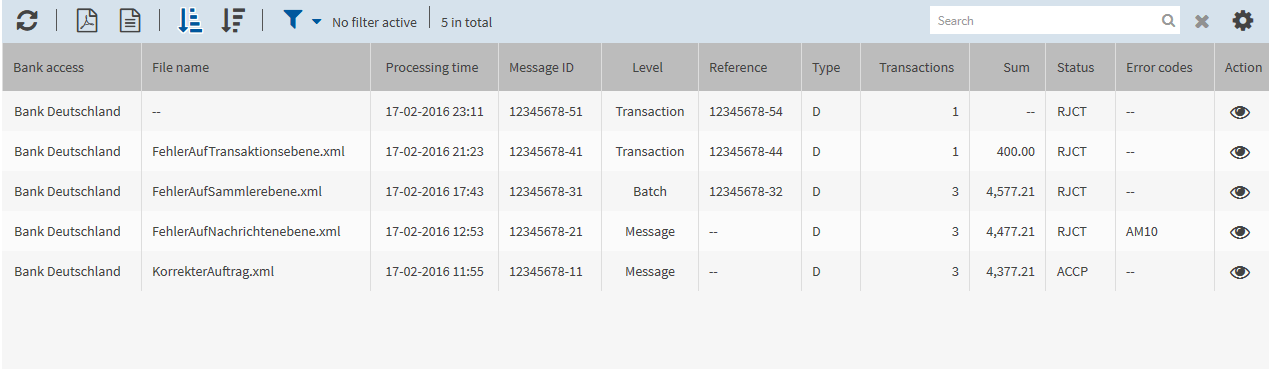
In the overview, the following information helps you identify the relevant levels and elements:
|
|
If there are several messages for a transaction, a batch or a message, the status message with the most recent processing time is relevant. |
|
|
The file name indicates which order file is the relevant one. |
|
|
The reference contains the ID of the respective level (batch or transaction) from the order file which the message refers to. On the message level, no reference is specified. |
|
|
On the transaction level, the number of transactions is always 1. |
For further error research, you can view details of each entry and of the error codes (see section Viewing details of the message).
|
1. |
Copy the file ID from the accompanying note to the clipboard. You can find the accompanying note for example at the order in the menu or in the detailed view of the order in the signature folder (menu , double-click on the order). |
||
|
2. |
Switch to the menu . |
||
|
3. |
Open the filter area by clicking on Filter active or Filter not active. |
||
|
4. |
Paste the file ID from the clipboard into the field Message ID. |
||
|
5. |
Click on Apply filter.
|
